SSML2MP3.com Tutorial: Create Studio-Quality Voiceovers in 60 Seconds
Learn how to create professional voiceovers with multiple voices and emotions in under 60 seconds using SSML2MP3's Visual Builder. No coding required.
SSML2MP3.com Tutorial: Create Studio-Quality Voiceovers in 60 Seconds
Creating professional voiceovers with multiple voices, emotions, and precise control no longer requires hours in a recording studio or learning complex SSML code. With SSML2MP3's Visual Builder, you can create studio-quality audio in just 60 seconds.
No coding. No complicated software. Just point, click, and create.
📹 Watch the Tutorial
Follow along with the video above, or read the step-by-step guide below.
What is the Visual Builder?
The Visual Builder is a no-code interface that lets you create professional voiceovers without writing any SSML tags. Instead of memorizing XML syntax, you:
- Add voice segments (like adding speakers to a conversation)
- Choose emotions from dropdowns (cheerful, excited, whispering, etc.)
- Type your text in a simple text box
- Adjust controls with sliders (speed, pitch, volume)
- Click "Convert to MP3" and get your audio
The system automatically generates all the SSML code behind the scenes.
Real Example: Multi-Voice Course Intro
Let's create a professional e-learning course intro with two speakers and multiple emotions. This is the exact example from the video:
The Script
Emma (cheerful): Hello and welcome to AI Productivity Mastery for Everyday Life! I'm Emma, and I am truly excited to have you here. In this course, we'll discover how artificial intelligence can help you stay organized, boost efficiency, and save valuable time every single day.
Daniel (friendly): And I'm Daniel. Together, we're going to guide you step by step through real, practical tools that anyone can start using
Daniel (whispering): – no advanced technical knowledge required.
How to Build This in 60 Seconds
Here's the exact workflow:
Step 1: Add Emma's Voice Segment (15 seconds)
- Go to ssml2mp3.com/app and log in
- Click "Add Voice Segment"
- In the voice dropdown, select "Neerja (Female, Indian)" (en-IN-NeerjaNeural)
- In the emotion dropdown, select "😊 Cheerful"
- Type Emma's text in the text box:
Hello and welcome to AI Productivity Mastery for Everyday Life! I'm Emma, and I am truly excited to have you here. In this course, we'll discover how artificial intelligence can help you stay organized, boost efficiency, and save valuable time every single day.
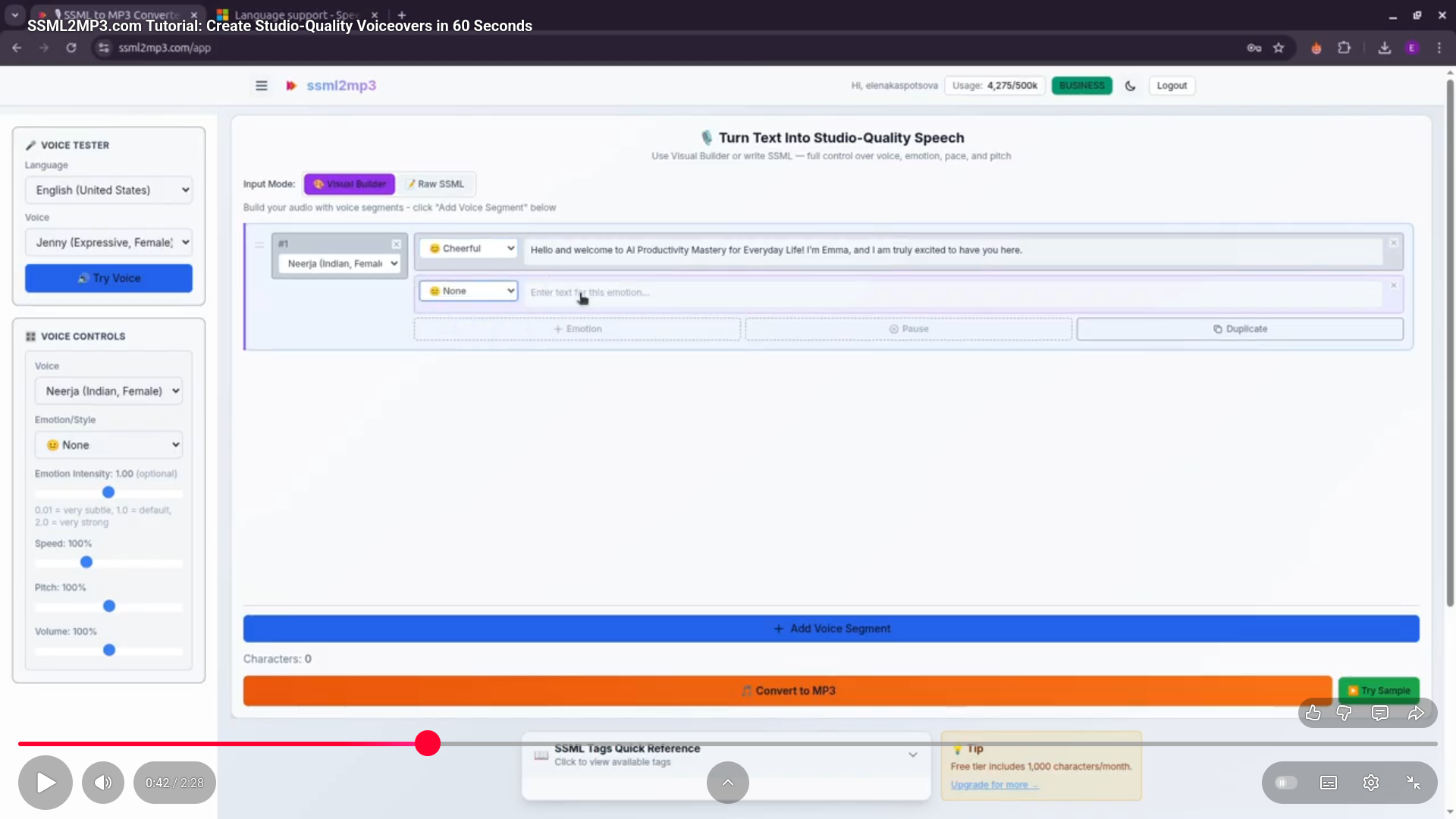 Emma's voice segment with cheerful emotion using Neerja (Indian accent)
Step 2: Add Daniel's Voice Segment (15 seconds)
- Click "Add Voice Segment" again (below Emma's segment)
- In the voice dropdown, select "Daniel (Male, Deep)" (en-US-DanielNeural or en-US-GuyNeural)
- In the emotion dropdown, select "🤝 Friendly"
- Type Daniel's first line:
And I'm Daniel. Together, we're going to guide you step by step through real, practical tools that anyone can start using
Step 3: Add Second Emotion Block for Daniel (15 seconds)
This is where the Visual Builder shines - you can add multiple emotions within the same voice:
- In Daniel's segment, click "+ Emotion" button
- A new emotion block appears below
- In the new emotion dropdown, select "🤫 Whispering"
- Type Daniel's whispered text:
– no advanced technical knowledge required.
Step 4: Fine-Tune and Convert (15 seconds)
- (Optional) Click on any emotion block to see the Voice Controls sidebar
- Adjust sliders if needed:
- Speed: Make Emma talk faster (120%) for energy
- Pitch: Keep Daniel's pitch lower for authority
- Volume: Reduce volume for whispering effect
- Click "Convert to MP3"
- Wait 3-5 seconds for processing
- Download your professional audio file
Total time: 60 seconds
Understanding Voice Segments vs Emotion Blocks
This is the key concept that makes the Visual Builder powerful:
Voice Segment
- Represents one speaker/voice (Emma, Daniel, Jenny, etc.)
- Can contain multiple emotion blocks
- Think of it as "who is speaking"
Emotion Block
- Represents one emotion/style within a voice
- Contains text and emotion settings
- Think of it as "how they're speaking"
Example Structure:
📢 Voice Segment 1: Emma
  └─ 😊 Emotion Block (cheerful): "Hello and welcome..."

📢 Voice Segment 2: Daniel
  ├─ 🤝 Emotion Block (friendly): "And I'm Daniel..."
  └─ 🤫 Emotion Block (whispering): "– no advanced technical..."
Available Emotions by Voice
Not all voices support all emotions. The Visual Builder automatically shows only the emotions that work with your selected voice:
High-Expression Voices (Most Emotions)
en-US-JennyNeural: - ✅ Cheerful, Excited, Friendly, Sad, Angry - ✅ Whispering, Shouting, Terrified - ✅ Assistant, Chat, Customer Service
en-US-GuyNeural: - ✅ Cheerful, Excited, Friendly, Sad, Angry - ✅ Hopeful, Newscast, Shouting, Terrified
en-US-AriaNeural: - ✅ Cheerful, Excited, Friendly, Sad, Angry - ✅ Empathetic, Chat, Hopeful
Moderate-Expression Voices
en-GB-RyanNeural (British): - ✅ Cheerful, Sad, Chat, Whispering
en-GB-SoniaNeural (British): - ✅ Cheerful, Sad
Standard Voices
- ✅ None (neutral tone only)
Pro Tip: Start with Jenny, Guy, or Aria for maximum emotion control.
Voice Controls: Fine-Tuning Your Audio
When you click on any emotion block, the Voice Controls sidebar appears with precise controls:
1. Voice Selector
Switch the voice for the entire segment - 117 voices in 40+ languages - Updates emotion options automatically
2. Emotion Dropdown
Same as the inline dropdown for quick access
3. Emotion Intensity Slider
Control how strong the emotion is: - 0.01 = Very subtle (barely noticeable) - 1.0 = Default (natural emotion) - 2.0 = Very strong (exaggerated)
Example: Set cheerful to 1.5 for an enthusiastic podcast intro
4. Speed Slider (50% - 200%)
Control speaking rate: - 50% = Very slow (emphasis, technical content) - 100% = Normal speed - 200% = Very fast (disclaimers, rapid announcements)
Example: Set Daniel's friendly block to 110% for natural conversation pace
5. Pitch Slider (50% - 150%)
Adjust voice pitch: - 50% = Very low (authority, serious tone) - 100% = Normal pitch - 150% = Very high (excitement, childlike)
Example: Lower Emma's pitch to 95% for a more professional sound
6. Volume Slider (0% - 200%)
Control loudness: - 0% = Silent - 100% = Normal volume - 200% = Very loud
Example: Set whispering block to 80% volume for realistic effect
Important: The Voice Controls sidebar automatically updates to show the settings for whichever emotion block you have currently selected (highlighted). Click on any emotion block to see and adjust its specific settings.
 Voice Controls sidebar updates based on the currently selected emotion block
Adding Pauses for Natural Flow
Make your voiceover sound more natural by adding strategic pauses:
How to Add Pauses
- Click in the text where you want a pause
- Click the "+ Pause" button
- Select duration from dropdown:
- 250ms = Quick breath
- 500ms = Natural pause
- 1s = Dramatic pause
- 2s = Topic transition
Visual Pause Pills
Pauses appear as visual pills in your text:
Hello and welcome ⏸ 500ms to my channel!
- Click the pill to edit duration
- Click the × to remove it
- Pauses are inline, so you can type around them
Example with Pauses
Emma (cheerful):
Hello and welcome to AI Productivity Mastery ⏸ 500ms for Everyday Life!
I'm Emma, ⏸ 250ms and I am truly excited to have you here.

Daniel (friendly):
And I'm Daniel. ⏸ 300ms Together, we're going to guide you step by step...
 Visual pause pills inserted inline in text
Organizing Your Segments
The Visual Builder gives you full control over segment organization:
Drag to Reorder
- Grab the drag handle (☰) on the left of each segment
- Drag up or down to reorder speakers
- Perfect for rearranging dialogue flow
Duplicate Segments
- Click "Duplicate" to copy a voice segment with all its emotion blocks
- Useful for recurring speakers in podcasts or courses
Delete Segments/Emotions
- Delete emotion block: Click × on individual emotion block
- Delete voice segment: Click × on entire segment
- Note: Can't delete the last emotion block (each voice needs at least one)
Segment Numbers
- Each segment shows its number (#1, #2, #3)
- Updates automatically when you reorder
Common Use Cases (60-Second Solutions)
1. E-Learning Course Intro (Like Our Example)
Setup: - Segment 1: Female voice (cheerful) - Welcome message - Segment 2: Male voice (friendly + calm) - Course overview
Time: 45 seconds to build, 5 seconds to convert
Perfect for: Online courses, tutorials, webinars
2. Podcast Co-Host Intro
Setup: - Segment 1: Host 1 (excited) - "Welcome to the show!" - Segment 2: Host 2 (friendly) - "Great to be here!" - Segment 3: Host 1 (cheerful) - "Today we're talking about..."
Time: 60 seconds to build
Perfect for: Podcasts, interviews, panel discussions
3. YouTube Video Narration
Setup: - Segment 1: Main voice (cheerful) - Intro hook - Segment 2: Same voice (calm) - Educational content - Segment 3: Same voice (excited) - Call to action
Time: 40 seconds to build
Perfect for: YouTube videos, explainers, tutorials
4. Customer Service IVR
Setup: - Segment 1: Professional voice (friendly) - Greeting - Segment 2: Same voice (calm) - Menu options (with pauses) - Segment 3: Same voice (gentle) - Closing message
Time: 50 seconds to build
Perfect for: Phone systems, automated greetings, hold messages
5. Audiobook Character Dialogue
Setup: - Segment 1: Character 1 (sad) - "I can't believe it's over" - Segment 2: Character 2 (empathetic) - "I know how you feel" - Segment 3: Narrator (calm) - "she said quietly"
Time: 60 seconds to build
Perfect for: Audiobooks, storytelling, audio dramas
Pro Tips for 60-Second Mastery
1. Start with the Right Voices
Choose voices before typing: - Jenny - Best for cheerful, enthusiastic female - Guy - Best for professional, authoritative male - Aria - Best for clear, versatile female - Emma - Best for expressive, warm female - Davis - Best for friendly, conversational male
2. Use Emotion Blocks Strategically
Instead of creating new segments, add emotion blocks to the same voice: - Faster workflow - Same speaker, different emotions - More natural transitions
3. Layer Emotions with Speed/Pitch
Combine emotion with sliders for powerful effects: - Cheerful + 120% speed = High energy - Calm + 90% speed = Soothing meditation - Excited + 110% pitch = Childlike enthusiasm - Serious + 90% pitch = Deep authority
4. Add Pauses Generously
Natural speech has breathing room: - After greetings (500ms) - Before important points (1s) - Between topics (1-2s) - After questions (500ms-1s)
5. Preview Individual Segments
Click "Try Voice" in the Voice Tester sidebar to: - Test different voices before committing - Hear voice samples - Compare accent options
6. Save Time with Duplication
If you have recurring speakers: 1. Build first segment perfectly 2. Click "Duplicate" 3. Change only the text 4. Keep voice, emotions, and settings
Troubleshooting Common Issues
"Emotion not available for this voice"
Problem: Tried to select an emotion but it's not in the dropdown
Solution: That voice doesn't support that emotion. Try: - Switch to Jenny, Guy, or Aria (most emotions) - Choose a different emotion - Use speed/pitch sliders to create the effect manually
"Audio sounds robotic"
Problem: Voice sounds flat and unnatural
Solution: - Add emotions to your blocks (change "None" to cheerful/friendly/calm) - Vary emotions between blocks - Add pauses for breathing room - Adjust emotion intensity slider (try 1.3-1.5)
"Can't delete emotion block"
Problem: Delete button doesn't work
Solution: Each voice segment must have at least one emotion block. If you only have one, create a second one first, then delete the original.
"Segments in wrong order"
Problem: Speakers are out of sequence
Solution: Use the drag handle (☰) to reorder segments. Click and drag to rearrange.
"Pause pill won't delete"
Problem: Can't remove a pause
Solution: Click the × button on the pause pill itself (not the emotion block delete button)
Visual Builder vs Raw SSML Mode
The Visual Builder has a sibling: Raw SSML Mode. Here's when to use each:
Use Visual Builder When:
✅ You're new to SSML ✅ You want fast, simple creation ✅ You're building dialogues with multiple speakers ✅ You prefer visual interfaces over code ✅ You want to avoid syntax errors
Use Raw SSML Mode When:
✅ You're comfortable with XML/code ✅ You need advanced SSML features (phonemes, say-as, etc.) ✅ You're copying SSML from another source ✅ You want full control over every tag ✅ You're using the AI SSML Generator
Pro Tip: You can switch between modes! Build in Visual Builder, switch to SSML to see the generated code, then switch back.
Pricing: Start Free
Free Tier
Perfect for testing the Visual Builder: - ✅ 1,000 characters/month - ✅ All 117 voices - ✅ All emotions and controls - ✅ Full Visual Builder access - ✅ Multi-voice support
Cost: Free forever
Pro Tier ($9/month)
For serious content creators: - ✅ 100,000 characters/month - ✅ All free tier features - ✅ Priority processing - ✅ Commercial license - ✅ Email support
Business Tier ($29/month)
For professional use: - ✅ 500,000 characters/month - ✅ All Pro tier features - ✅ Highest priority processing - ✅ Dedicated support
The 60-Second Workflow (Recap)
Let's summarize the exact workflow from the video:
0:00 - 0:15 - Add Emma's voice segment - Add segment - Select Emma voice - Choose cheerful emotion - Type her text
0:15 - 0:30 - Add Daniel's voice segment - Add segment - Select Daniel/Guy voice - Choose friendly emotion - Type his first line
0:30 - 0:45 - Add Daniel's second emotion - Click "+ Emotion" - Choose whispering - Type his whispered line
0:45 - 1:00 - Fine-tune and convert - Optional: Adjust sliders - Click "Convert to MP3" - Download audio
Total: 60 seconds from blank page to MP3
What Makes This Different?
Traditional voiceover creation requires: - ❌ Expensive recording equipment ($500-5000) - ❌ Soundproof studio space - ❌ Professional voice actors ($100-500/hour) - ❌ Audio editing software and skills - ❌ Multiple takes and re-recordings - ❌ Hours or days of work
SSML2MP3 Visual Builder requires: - ✅ A web browser - ✅ 60 seconds of time - ✅ $0-$29/month
The playing field has leveled.
Real User Results
"I created a week's worth of e-learning intros in 10 minutes. This is exactly what I needed." — Sarah M., Course Creator
"The emotion blocks are genius. I can have my host sound excited, then calm, then serious - all in one take." — Mike T., Podcast Host
"As someone who can't code, the Visual Builder is perfect. No SSML knowledge required." — Jessica L., Content Creator
"I timed it. 58 seconds from start to download. Incredible." — David R., Marketing Manager
Beyond 60 Seconds: Advanced Techniques
Once you master the basics, explore these advanced workflows:
Multi-Episode Podcast Series
- Create template with your standard intro/outro segments
- Duplicate the project
- Only change the middle content segments
- Consistent branding across all episodes
Character Voices for Audiobooks
- Assign different voices to different characters
- Use emotion blocks for dialogue variations
- Add narrator voice segments between dialogues
- Use pauses for dramatic timing
Language Learning Content
- Add segments in different languages
- Use same text with different language voices
- Add pauses for student repetition
- Combine with calm emotion for teaching
Dynamic Ad Campaigns
- Create base ad in Visual Builder
- Duplicate for variations
- Change emotion/intensity for A/B testing
- Test different voice combinations
Frequently Asked Questions
Q: Can I edit the audio after conversion?
A: The MP3 is the final output. To make changes, update your segments in the Visual Builder and regenerate. You can also import the MP3 into audio editing software (Audacity, Adobe Audition) to add music or effects.
Q: How many voice segments can I add?
A: Unlimited segments (limited only by your character allowance). Free tier: 1,000 chars total. Pro tier: 100,000 chars total.
Q: Can I save my projects?
A: Currently, projects aren't saved automatically. However, you can: - Switch to Raw SSML mode to see the generated code - Copy and save the SSML code externally - Paste it back when you return and switch to Visual mode
Q: Do pause pills count toward character limits?
A: No! Pause pills ([[pause:500ms]] in the data) are converted to <break> tags which don't count as characters. Only actual spoken text counts.
Q: Can I switch between Visual Builder and Raw SSML?
A: Yes! Click the mode toggle at the top. The system automatically converts between formats. Visual → SSML generates code. SSML → Visual parses code into segments.
Q: What happens if I select an unsupported emotion?
A: The dropdown only shows emotions supported by your selected voice, so you can't accidentally choose an unsupported one. If you switch voices, unsupported emotions auto-reset to "None."
Q: Can I use this for commercial projects?
A: Yes, with Pro ($9/mo) or Business ($29/mo) tiers. Free tier is for personal use only.
Q: How long does conversion take?
A: Typically 3-10 seconds depending on: - Length of text - Number of voice segments - Server load - Azure TTS processing time
Start Creating in 60 Seconds
The fastest way to professional voiceovers is one click away:
- Create free account (30 seconds)
- Watch the video tutorial (5 minutes)
- Start creating (60 seconds per voiceover)
No credit card required. 1,000 free characters to start.
Try the Exact Example from This Tutorial
Want to recreate the exact example from the video? Here's a starter template:
Emma's Segment (Cheerful):
Hello and welcome to AI Productivity Mastery for Everyday Life! I'm Emma, and I am truly excited to have you here. In this course, we'll discover how artificial intelligence can help you stay organized, boost efficiency, and save valuable time every single day.
Daniel's Segment - Block 1 (Friendly):
And I'm Daniel. Together, we're going to guide you step by step through real, practical tools that anyone can start using
Daniel's Segment - Block 2 (Whispering):
– no advanced technical knowledge required.
Copy, paste, set voices and emotions, and convert! You'll have the exact audio from the tutorial in under 60 seconds.
Next Steps
- Watch the full video tutorial - See it in action
- Try the free account - 1,000 characters free
- Read our SSML guide - Learn Raw SSML mode
- Explore multi-voice tips - Advanced techniques
Questions? Contact us at support@ssml2mp3.com
Found this helpful? Share it with other content creators who need fast, professional voiceovers!
Ready to create? Your 60-second journey to studio-quality audio starts now. 🎙️